Table of Contents
- New Inspection with RV Template
- Adding Customer Information
- Adding the Coach Year/Make/Model/VIN Information
- Adding Inspection Date and Time
- Adding Boilerplate, Service, and Pricing
- Select the Contract Agreements
- Practice Using the Mobile App
The following describes the process of starting a new inspection in RV ScribeWare. The screenshots will show the process of setting up an RV inspection using the desktop ScribeWare application.
New Inspection with the RV Template
Once you have installed the ScribeWare RV template and library, you can select the template by clicking ”Create from template”. This will bring up a list of inspection templates on your system. Select the one that starts with ‘RV Inspections’.
Adding Customer Information
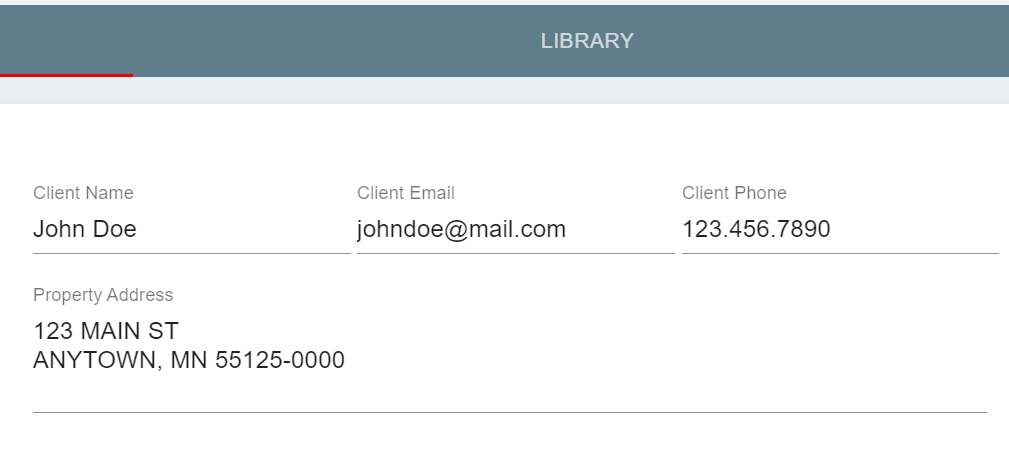
Once the template is selected, you should be on the Client/Property page. The next step is to enter the client’s information, such as Client Name, Client Email, Client Phone, and Property Address.
Adding the Coach Year/Make/Model/VIN Information
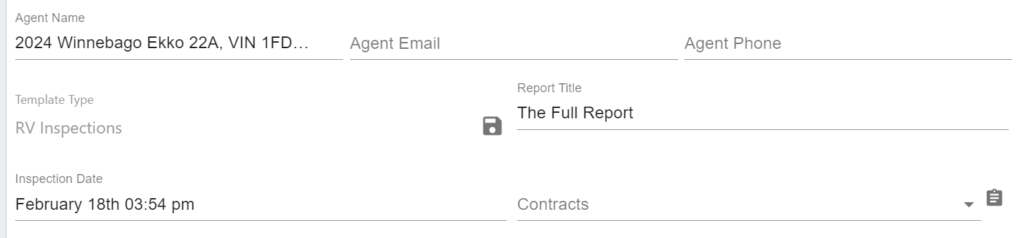
The contracts, which are available on request, are configured to use the ‘Agent Name’ field for the coach’s Year/Make/Model and VIN information.
Adding Inspection Date and Time
On the left side of the ‘Client/Property Information’ screen, add the date and time of the inspection in the ‘Inspection Date’ field.
Adding Boilerplate, Service, and Pricing
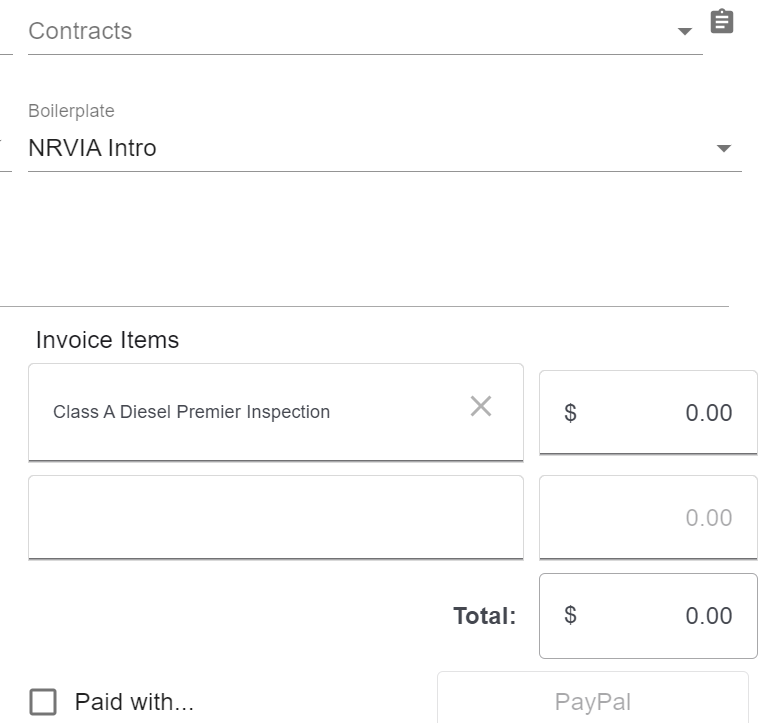
On the right side of the ‘Client/Property Information’ screen, select the ‘NRVIA Intro’ boilerplate and enter the ‘Invoice Items’: service and pricing.
Select the Contract Agreements
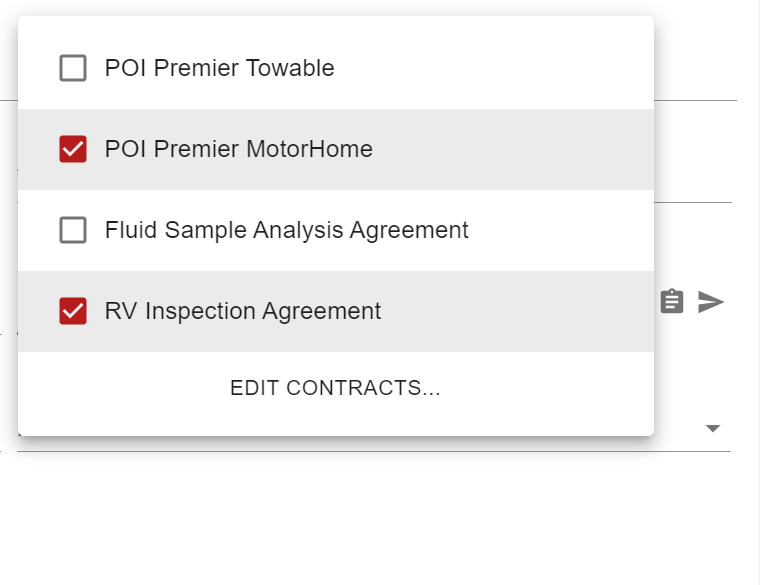
Select the applicable contract agreements and then select the arrow to the right to send the agreements. The agreements shown below are available after reading the Terms and Conditions and sending a request to info@RVScribeware.
Practice Using the Mobile App
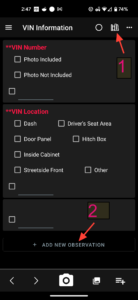
There are two methods to create an observation on the mobile Scribeware app:
1) Select the book-like icon on the upper right of the app (see Figure 1-1); this will pull up a list of observations that come from the RV ScribeWare library.
2) Select the ‘+ Add New Observation’ on the lower part of the screen (see Figure 1-2).